MacBook Pro’s Illuminated Apple Logo Can Be Disabled With a Terminal Command
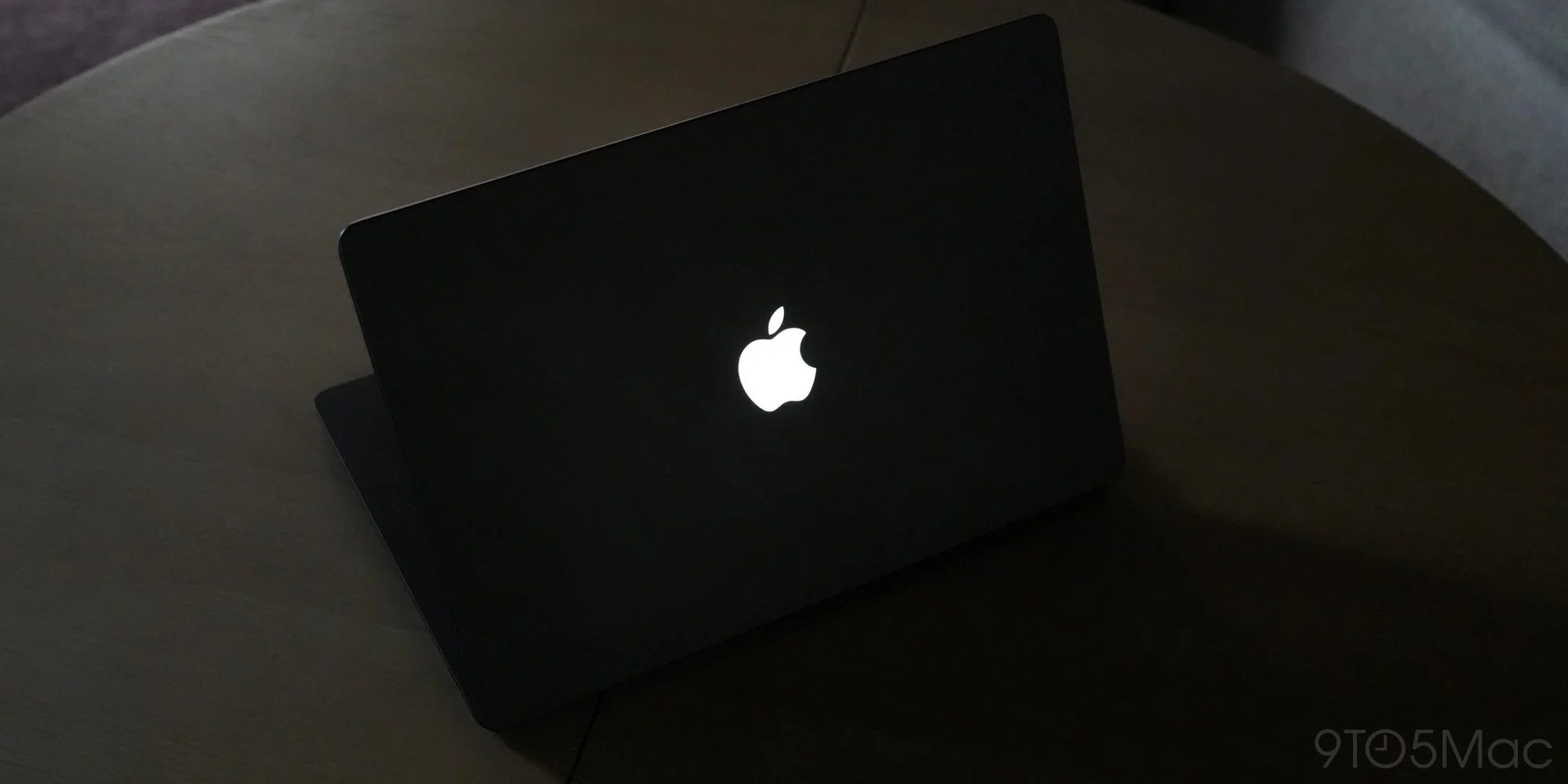
The illuminated Apple logo on the new MacBook Pro has its own brightness controls, and Apple’s support guide now documents a way to disable it entirely. The switch is a Terminal command rather than a setting in System Settings, so turning the logo off requires an administrator password and a willingness to use a command line. That’s a precise control for people who want it, though its placement makes the feature less accessible than a conventional toggle.
Lighting that responds to the room
The MacBook Pro with PROLED XDR Display brings back the glowing lid logo after a decade. On older models, the display’s backlight supplied the light that passed through the Apple-shaped cutout; the new OLED model needs a separate approach, according to the information described here. That change turns a familiar decorative detail into a separately managed lighting system, with its own behavior and controls.
As Chance Miller wrote in his review, the logo’s brightness tracks the screen while also responding to ambient light. Apple’s support document says it dims in a dark room and brightens in a well-lit one, whatever the screen brightness setting. The distinction matters: the logo isn’t simply a window into the display’s brightness, but an element whose output can also change with the room. When the laptop is closed, the logo looks like polished metal, leaving the lid with a different appearance when the light is off.
Developer Gui Rambo shared more detail about the controls on X, including per-device calibration and a 25kHz PWM signal. He also reported that CoreBrightness manages the relationship between the screen and logo, with adjustments that vary by enclosure color. That points to a system doing more than applying one brightness value across every machine: calibration and finish appear to affect how the illumination is tuned. The details come from Rambo’s account, while Apple’s support guide explains the user-facing behavior.
There’s a practical reason to care about this level of control, even if the logo is a small part of the laptop. A user might prefer a dark lid in a shared room, want fewer illuminated elements in a dim environment, or simply dislike the effect. Those are preferences, not faults in the display. The useful point is that Apple has documented a way to choose.
Turn the logo off or restore it
To keep the logo dark, open Terminal and run this command. You’ll need to enter an administrator password, because the command uses sudo to make a system-level change. If you’re working in Terminal already, the steps are brief; if you aren’t, the command line may feel like unnecessary friction for a visual preference.
sudo defaults write com.apple.CoreBrightness LEBacklightMode -int 0
To bring the illumination back, remove that setting with the following command. It deletes the preference written by the first command, allowing the default behavior to return. Keep the two commands distinct: the first sets the value to disable the logo, while the second removes that value.
sudo defaults delete com.apple.CoreBrightness LEBacklightMode
Apple says reinstalling macOS also restores the logo illumination. That gives users another path back to the default behavior, though reinstalling an operating system is a far heavier step than changing a preference. The documented delete command is the direct way to reverse the change when the goal is simply to turn the light back on.
The control offers a precise software switch, but it currently takes a Terminal command instead of a setting in the interface. That’s a small gap between capability and usability: Apple has exposed the option for people comfortable with commands, while leaving others without an obvious on-screen control. And this is the part most people overlook: the logo’s brightness behavior is automatic, but opting out isn’t. A setting in the interface would make the choice easier to find and explain; for now, users need to follow Apple’s instructions carefully.
What the control says about the feature
This is more significant than it looks. The glowing logo has returned as a visible design detail, but its separate control shows that Apple treats it as an active part of the display experience rather than a fixed decoration. Its brightness responds to room lighting, and the reported calibration varies by device and enclosure color. That adds engineering complexity to a feature whose main job, from the user’s perspective, is to look right.
There’s a trade-off in that design. Automatic adjustment can help the logo remain visible without matching screen brightness in every setting, but users may want a predictable appearance or no light at all. A command offers control, though it puts the burden on the user to discover the support page and enter the right text. If you’re working in this space, the larger lesson is familiar: a feature can be technically adjustable and still be hard to control in everyday use.
Here's the thing: Apple has supplied a documented off switch, and it can be reversed without reinstalling macOS. That’s useful, even if the Terminal requirement narrows who’s likely to use it. The available information doesn’t establish whether Apple will add a graphical control, so the current path is the one users can rely on.
Read Apple’s full support guide for the commands and instructions, or see 9to5Mac’s MacBook Pro review for more on the display and its features. The support guide is the practical reference if you plan to change the logo’s behavior. The review provides wider context for how the display and its features fit into the laptop.